
Employees
Manage employee profiles, track employment details, and maintain your workforce directory in Eranis HR.
 View and manage all your employees from a centralized directory.
Overview
The employee module is the core of Eranis HR. It stores all information about your workforce:
- Personal information (name, contact details)
- Employment details (position, department, hire date)
- Manager relationships and reporting lines
- Leave balances and history
- Documents and files
Adding Employees
Creating a New Employee
- Navigate to Employees
- Click "Create Employee"
- Fill in the required information:
Personal Information:
- First Name
- Last Name
- Email Address
- Phone Number
- Date of Birth
- Address
Employment Details:
- Employee Number (auto-generated or custom)
- Position/Job Title
- Department
- Location
- Hire Date
- Employment Type (Full-time, Part-time, Contract)
Manager Assignment:
- Select the employee's direct manager
- Save the employee record
Importing Employees
For bulk onboarding, you can import employees via CSV:
- Go to Employees > Import
- Download the template CSV file
- Fill in your employee data
- Upload the completed file
- Review and confirm the import
Employee Profiles
Each employee has a comprehensive profile page showing:
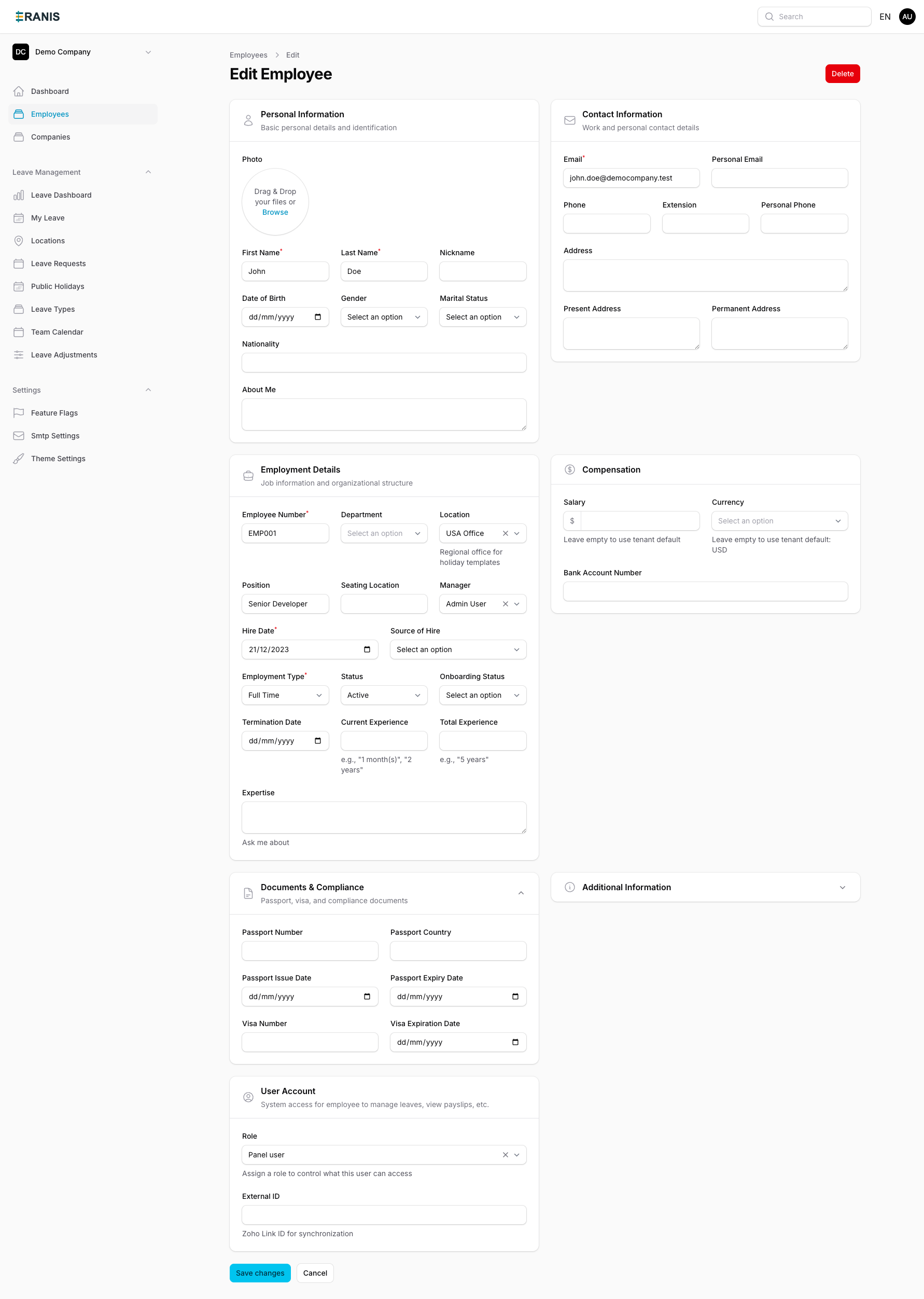 Comprehensive employee profiles capture all essential information.
Overview Tab
- Profile photo and basic info
- Current position and department
- Manager and direct reports
- Employment status
Employment Tab
- Hire date and tenure
- Position history
- Salary information (if enabled)
- Employment type
Leave Tab
- Current leave balances by type
- Leave request history
- Upcoming approved leave
Documents Tab
- Employment contracts
- ID documents
- Certificates and qualifications
- Performance reviews
Managing Employee Information
Updating Employee Details
- Open the employee profile
- Click "Edit" on the relevant section
- Make your changes
- Save
All changes are logged in the audit trail.
Changing Department
When an employee moves to a new department:
- Open the employee profile
- Go to Employment Details
- Select the new department
- Update the manager if needed
- Save changes
Changing Manager
- Open the employee profile
- Go to Employment Details
- Select the new manager from the dropdown
- Save changes
The previous reporting relationship is preserved in the history.
Employee Status
Employees can have the following statuses:
| Status | Description |
|---|---|
| Active | Currently employed |
| On Leave | Extended leave (parental, sabbatical) |
| Probation | In probationary period |
| Notice Period | Resigned, working notice |
| Inactive | No longer employed |
Changing Status
- Open the employee profile
- Click the status badge
- Select the new status
- Add notes if required
- Confirm the change
Offboarding
When an employee leaves the organization:
- Navigate to the employee profile
- Click "Offboard Employee"
- Enter the last working day
- Select the reason for leaving
- Trigger any required workflows:
- Equipment return
- Access revocation
- Exit interview scheduling
- Confirm offboarding
The employee record is retained for compliance but marked as inactive.
Search and Filters
Find employees quickly using:
- Quick Search - Search by name or email
- Department Filter - View by department
- Location Filter - View by office
- Status Filter - Active, inactive, etc.
- Manager Filter - View direct reports
Org Chart
View your organization structure visually:
- Go to Employees > Org Chart
- Navigate through the hierarchy
- Click on any employee to view their profile
Permissions
Different user roles have different access:
| Role | View | Edit | Delete |
|---|---|---|---|
| Admin | All | All | All |
| HR Manager | All | All | No |
| Manager | Team only | Limited | No |
| Employee | Self only | Limited | No |