
Getting Started with Eranis HR
Welcome to Eranis! This guide will help you set up your account and get your team onboarded quickly.
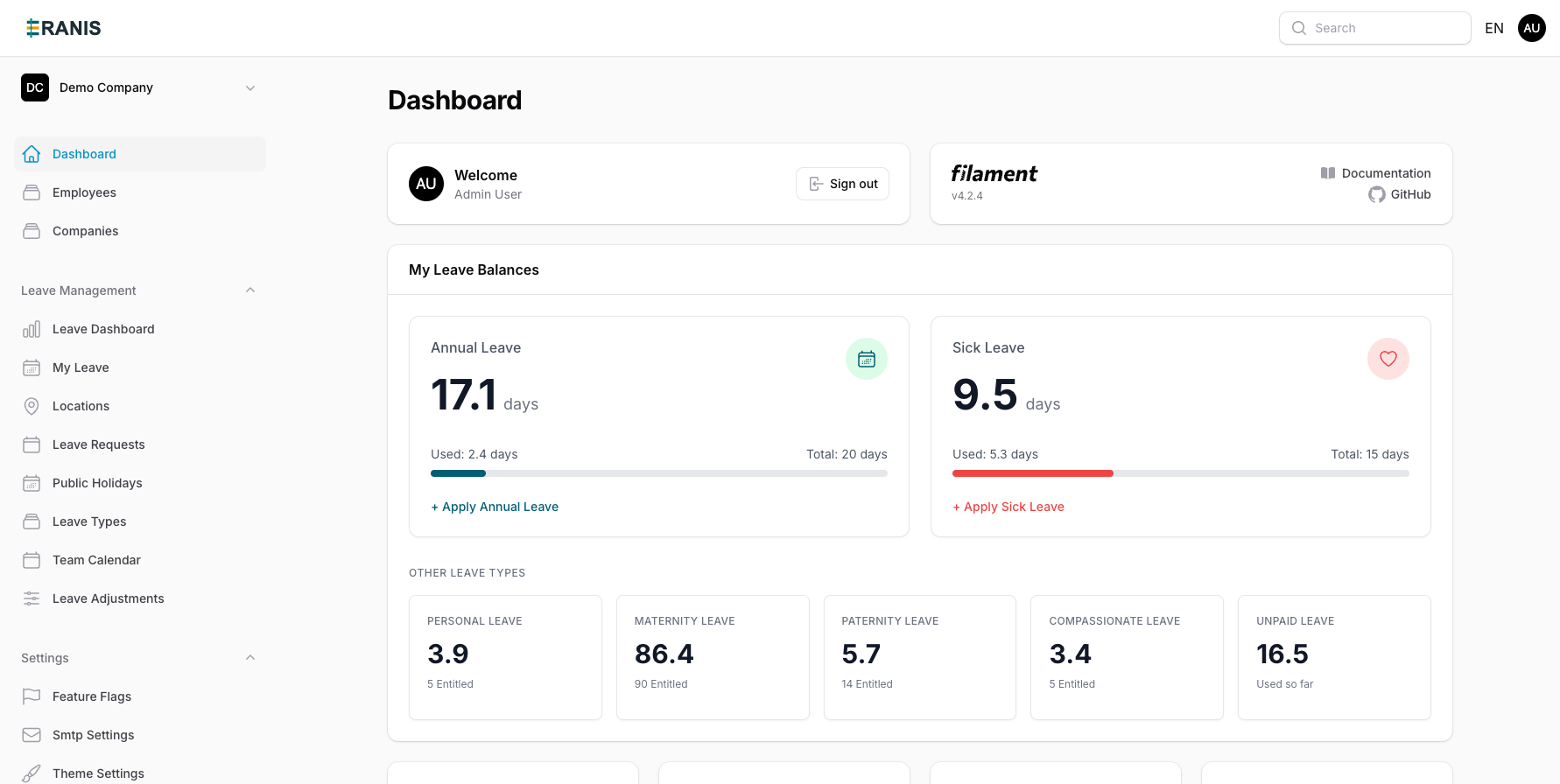 Your Eranis HR dashboard provides a complete overview of your organization.
Creating Your Account
To get started with Eranis HR, you'll need to create an account for your organization:
- Visit the registration page and enter your company details
- Provide your email address and create a secure password
- Verify your email address by clicking the link sent to your inbox
- Complete your company profile with basic information
Tip: Use your work email address to make it easier for team members to find and join your organization.
Initial Setup Checklist
After creating your account, follow these steps to configure your organization:
- Add Locations - Set up your office locations with country-specific holidays
- Create Departments - Organize your company structure
- Configure Leave Types - Define the types of leave available to employees
- Add Employees - Invite your team members to the platform
1. Add Your Office Locations
If your company operates in multiple countries or offices, start by adding your locations. Each location can have:
- Country-specific public holidays
- Default leave entitlements
- Work week configuration
- Timezone settings
2. Create Departments
Organize your employees into departments for better management and reporting:
- Create hierarchical department structures
- Assign department managers
- Set department-specific policies
Learn more about Departments →
3. Configure Leave Types
Set up the types of leave your employees can request:
- Annual leave / PTO - Paid vacation time
- Sick leave - Time off for illness
- Parental leave - Maternity and paternity leave
- Custom types - Any leave specific to your organization
Learn more about Leave Management →
4. Add Your Employees
Finally, add your team members to the system. For each employee, you'll enter:
- Personal information (name, contact details)
- Employment details (hire date, position, department)
- Manager assignment
- Location assignment
Inviting Team Members
You can invite other administrators to help manage your HR operations:
- Navigate to Settings > Team Members
- Click "Invite User"
- Enter their email address and select their role
- They'll receive an invitation email to join your organization
Next Steps
Once you've completed the initial setup, you're ready to:
- Process leave requests - Review and approve employee time off
- Track employee information - Maintain up-to-date records
- Generate reports - Get insights into your workforce