
Locations
Manage your organization's office locations, configure country-specific holidays, and set up regional leave policies.
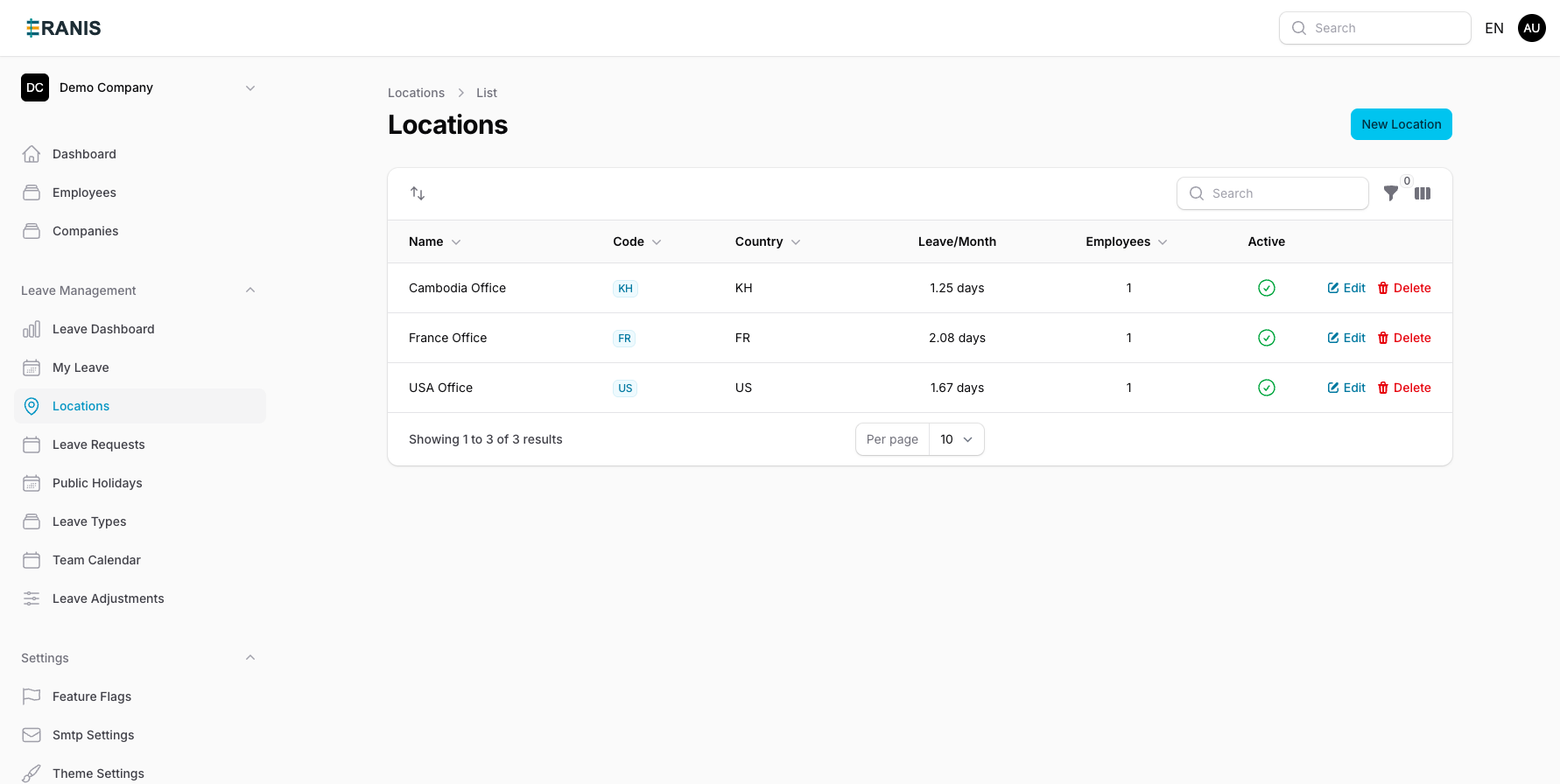 Manage multiple office locations with country-specific settings.
Overview
Locations in Eranis represent your physical offices or operational regions. Each location can have its own:
- Public holidays calendar
- Default leave entitlements
- Work week configuration (which days are working days)
- Timezone settings
- Currency for salary/expense reporting
Tip: Even if you only have one office, we recommend setting up a location to properly configure holidays and work schedules.
Creating a Location
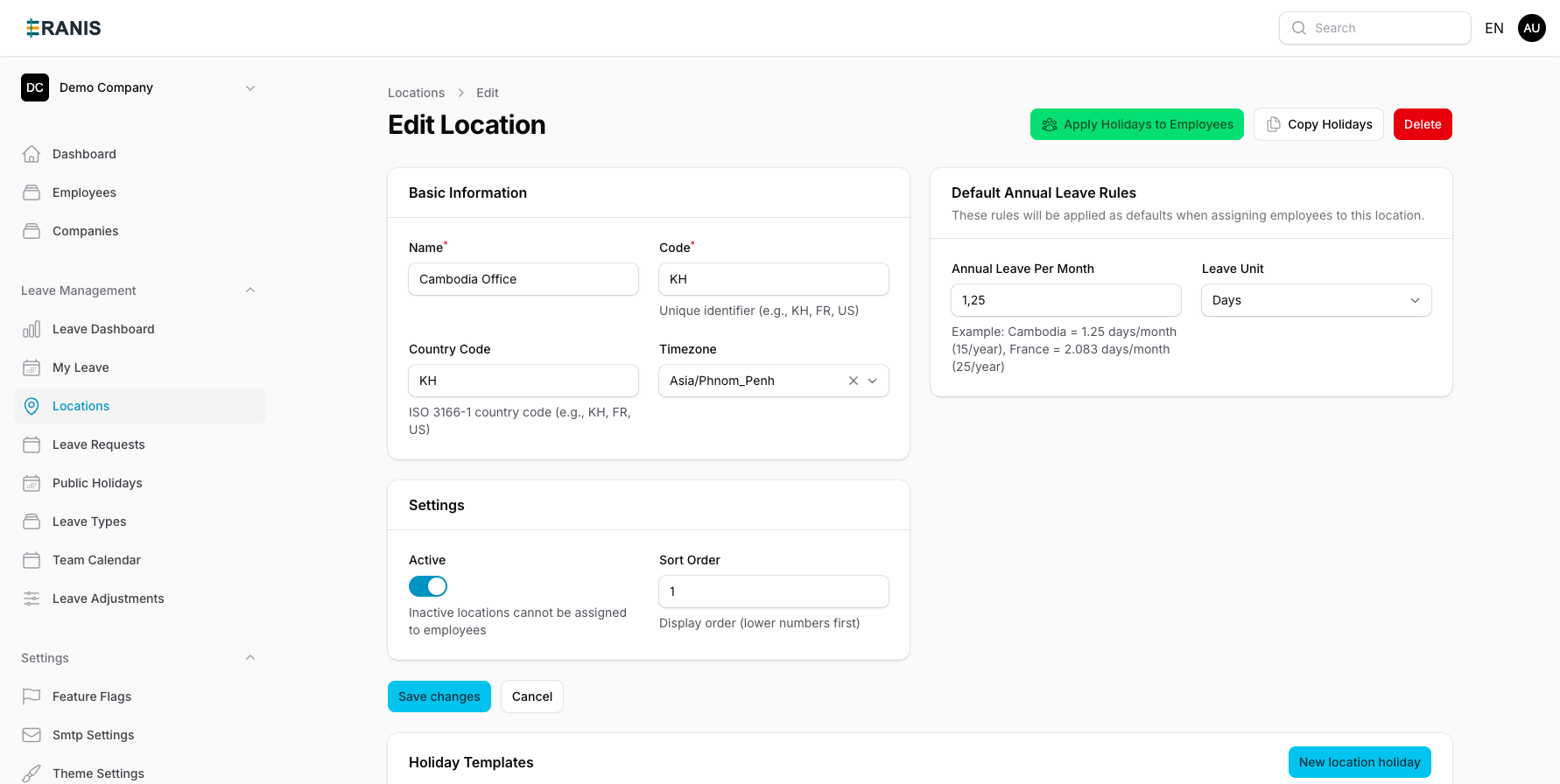 Configure timezone, leave rules, and regional settings for each location.
- Navigate to Settings > Locations
- Click "Create Location"
- Fill in the location details:
- Name - Office name (e.g., "Paris Headquarters")
- Country - Country for holiday templates
- Timezone - Local timezone
- Currency - Local currency
- Address - Physical address (optional)
- Save the location
Managing Holidays
Each location can have its own set of public holidays. These are used to:
- Exclude holidays from leave calculations
- Display on team calendars
- Determine working days for payroll
Adding Holidays
You can add holidays manually or import from a template.
Manual Entry
- Open the location
- Go to the Holidays tab
- Click "Add Holiday"
- Enter the holiday details:
- Name - Holiday name (e.g., "Christmas Day")
- Date - The date of the holiday
- Recurring - Whether it repeats yearly
Importing Holiday Templates
Eranis provides pre-configured holiday templates for many countries:
| Country | Holidays Included | Last Updated |
|---|---|---|
| Cambodia | 22 holidays | 2025 |
| France | 11 holidays | 2025 |
| United States | 10 holidays | 2025 |
| United Kingdom | 8 holidays | 2025 |
To import a template:
- Open the location
- Go to the Holidays tab
- Click "Import Template"
- Select the country and year
- Review the holidays to be imported
- Confirm the import
Holiday Types
Holidays can be categorized by type:
- Public Holiday - Government-mandated days off
- Bank Holiday - Financial institution closures
- Company Holiday - Organization-specific days off
- Optional Holiday - Employees may choose to take off
Work Schedules
Define the standard work week for each location:
| Day | Status |
|---|---|
| Monday | Working |
| Tuesday | Working |
| Wednesday | Working |
| Thursday | Working |
| Friday | Working |
| Saturday | Off |
| Sunday | Off |
Work schedules affect:
- How leave days are calculated (only working days count)
- Payroll calculations
- Calendar displays
Assigning Employees to Locations
Each employee should be assigned to a primary location. This determines:
- Which holidays apply to them
- Their default leave policies
- Timezone for scheduling
Setting Employee Location
- Open the employee profile
- Go to Employment Details
- Select the location from the dropdown
- Save changes
Warning: Changing an employee's location may affect their leave calculations and holiday calendar.
Multi-Location Organizations
If your organization operates in multiple countries or regions, Eranis helps you manage the complexity:
Location-Specific Policies Different leave entitlements for each country based on local labor laws.
Regional Calendars View team availability with the correct holidays for each location.
Currency Support Display salaries and expenses in local currencies.
Timezone Awareness Schedule meetings and deadlines in local time.
Best Practices
- One location per country - At minimum, create one location per country you operate in to properly handle holidays.
- Review holidays annually - Public holiday dates can change. Review and update each year.
- Set a default location - Choose a default location for new employees to streamline onboarding.
- Document local policies - Use location notes to document country-specific HR policies.