
Leave Management
Eranis provides a complete leave management system to handle all types of employee time off, from annual leave to sick days and custom leave types.
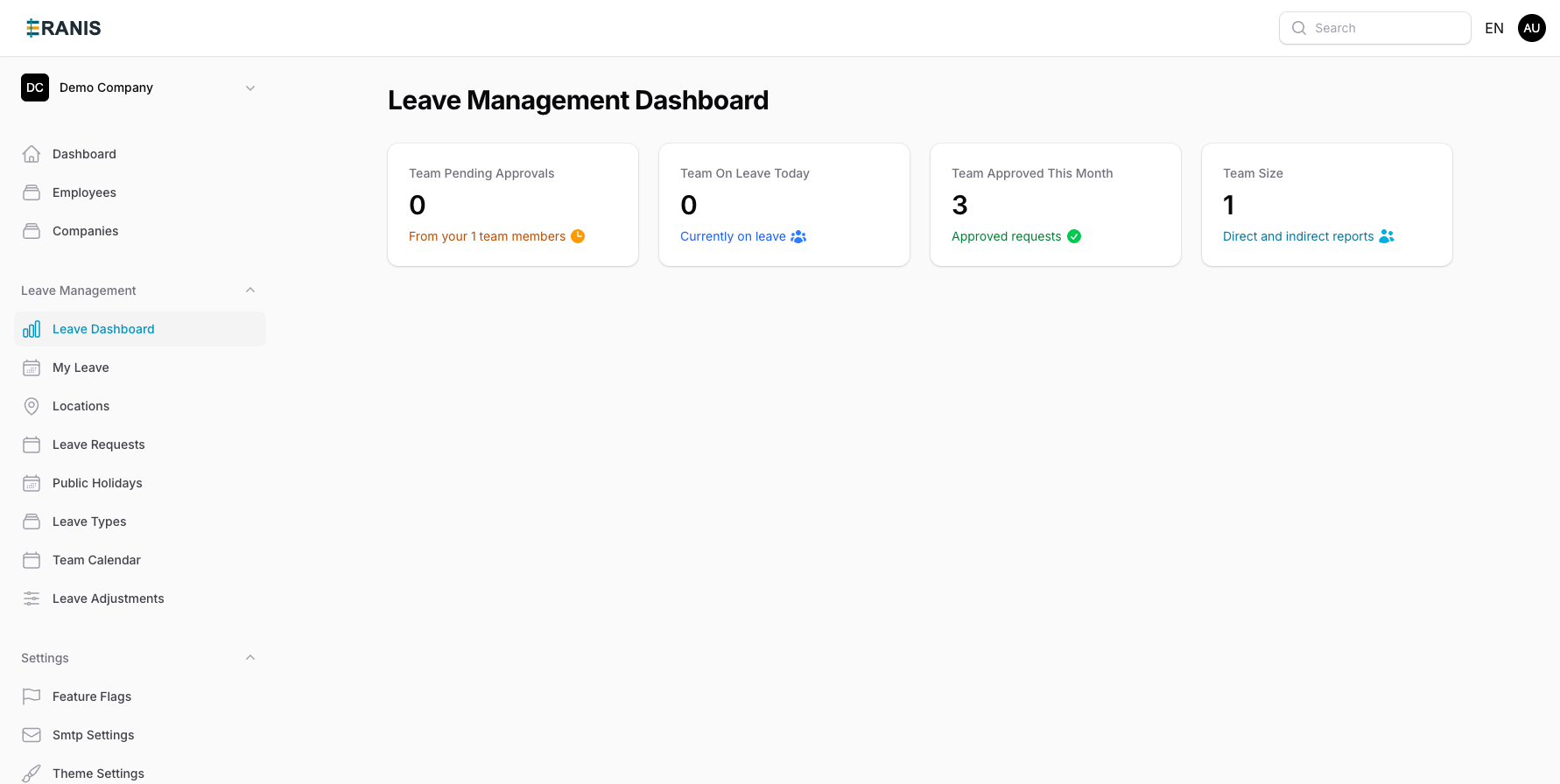 Track leave requests, balances, and team availability at a glance.
Overview
The leave management system consists of several components:
- Leave Types - Define the categories of leave available (annual, sick, parental, etc.)
- Leave Policies - Set rules for accrual, carryover, and entitlements
- Leave Requests - Employee submissions for time off
- Leave Balances - Track available days for each employee
- Leave Adjustments - Manual corrections to balances
Leave Types
Leave types define the categories of time off your organization offers. Common examples include:
| Leave Type | Description | Typical Entitlement |
|---|---|---|
| Annual Leave | Paid vacation time | 15-25 days/year |
| Sick Leave | Time off for illness | 10-15 days/year |
| Parental Leave | Maternity/paternity time | Varies by country |
| Unpaid Leave | Extended time off without pay | As needed |
Creating a Leave Type
- Navigate to Leave Management > Leave Types
- Click "Create Leave Type"
- Fill in the required fields:
- Name - Display name (e.g., "Annual Leave")
- Code - Short code for reports (e.g., "AL")
- Color - Color for calendar display
- Requires Approval - Whether manager approval is needed
- Is Paid - Whether this leave type is paid
- Save the leave type
Leave Policies
Leave policies define the rules for how leave is allocated, accrued, and managed. Each policy can be assigned to specific employees or locations.
Policy Settings
Accrual Rules:
- Monthly, quarterly, or yearly accrual
- Accrual rate (days per period)
- Pro-rated for new hires
- Maximum balance cap
Carryover Rules:
- Days allowed to carry forward
- Expiration date for carried days
- Use-it-or-lose-it options
Creating a Leave Policy
- Go to Leave Management > Leave Policies
- Click "Create Policy"
- Select the leave type this policy applies to
- Configure accrual settings:
- Accrual Frequency - How often leave is credited
- Accrual Amount - Days credited per period
- Maximum Balance - Cap on accumulated days
- Configure carryover settings (optional)
- Assign the policy to locations or employee groups
- Save the policy
Requesting Leave
Employees can submit leave requests through their dashboard. Here's how the process works:
- Employee submits request → Select dates and leave type
- Manager receives notification → Email and in-app alert
- Manager reviews & decides → Approve or reject with comments
- Balance updated automatically → Deducted upon approval
Submitting a Leave Request
- Navigate to Leave > Request Leave
- Select the leave type
- Choose the start and end dates
- Add any notes or comments (optional)
- Attach supporting documents if required
- Submit the request
The system automatically checks your available balance and will warn you if you don't have enough days.
Approving Leave Requests
Managers can review and approve leave requests from their team members.
Approval Workflow
- Navigate to Leave > Pending Requests
- Review the request details:
- Employee name and department
- Leave type and dates
- Current balance
- Team calendar (check for conflicts)
- Choose to Approve or Reject
- Add comments if rejecting (recommended)
Leave Balances
The system automatically tracks leave balances for each employee. Balances are updated when:
- Leave is accrued (based on policy)
- A leave request is approved
- A manual adjustment is made
- The year resets (carryover is applied)
Viewing Balances
Employees can view their current balances on their dashboard. Admins can view all employee balances under Leave Management > Balances.
Leave Adjustments
Sometimes you need to manually adjust an employee's leave balance. Common reasons include:
- Correction of errors
- Special grants (e.g., bonus days)
- Migration from another system
- Compensation for cancelled leave
Making an Adjustment
- Go to Leave Management > Adjustments
- Click "Create Adjustment"
- Select the employee and leave type
- Enter the adjustment amount (positive to add, negative to subtract)
- Provide a reason (required for audit trail)
- Save the adjustment
Important: All adjustments are logged in the audit trail. Always provide a clear reason for the adjustment.
Reports
Eranis provides several reports to help you analyze leave patterns:
- Leave Summary - Overview of all leave taken by type
- Balance Report - Current balances for all employees
- Absence Calendar - Visual calendar of who's away when
- Trend Analysis - Leave patterns over time